Pick the column that identifies a row
Every comparison needs a key: a value that means the same record in both files, such as an order number, invoice number, email address or SKU. Without one, the only option is to compare row positions, and a single extra row throws everything off.
If no single column is unique, combine two, for example customer email plus date. Check the key for duplicates first: if the same order number appears twice in one file, decide whether that is a real duplicate or two separate lines.
Clean the key before you compare
Most false mismatches come from formatting, not from real differences. INV-0042 and inv-0042 are the same invoice, and so are 00123 and 123 when a spreadsheet drops leading zeros.
Trim extra spaces, use one letter case, and make sure numbers stored as text and numbers stored as numbers are treated the same.
- Trim spaces at the start and end
- Use one letter case for text keys
- Keep leading zeros consistent
- Use one date format
The four results you are looking for
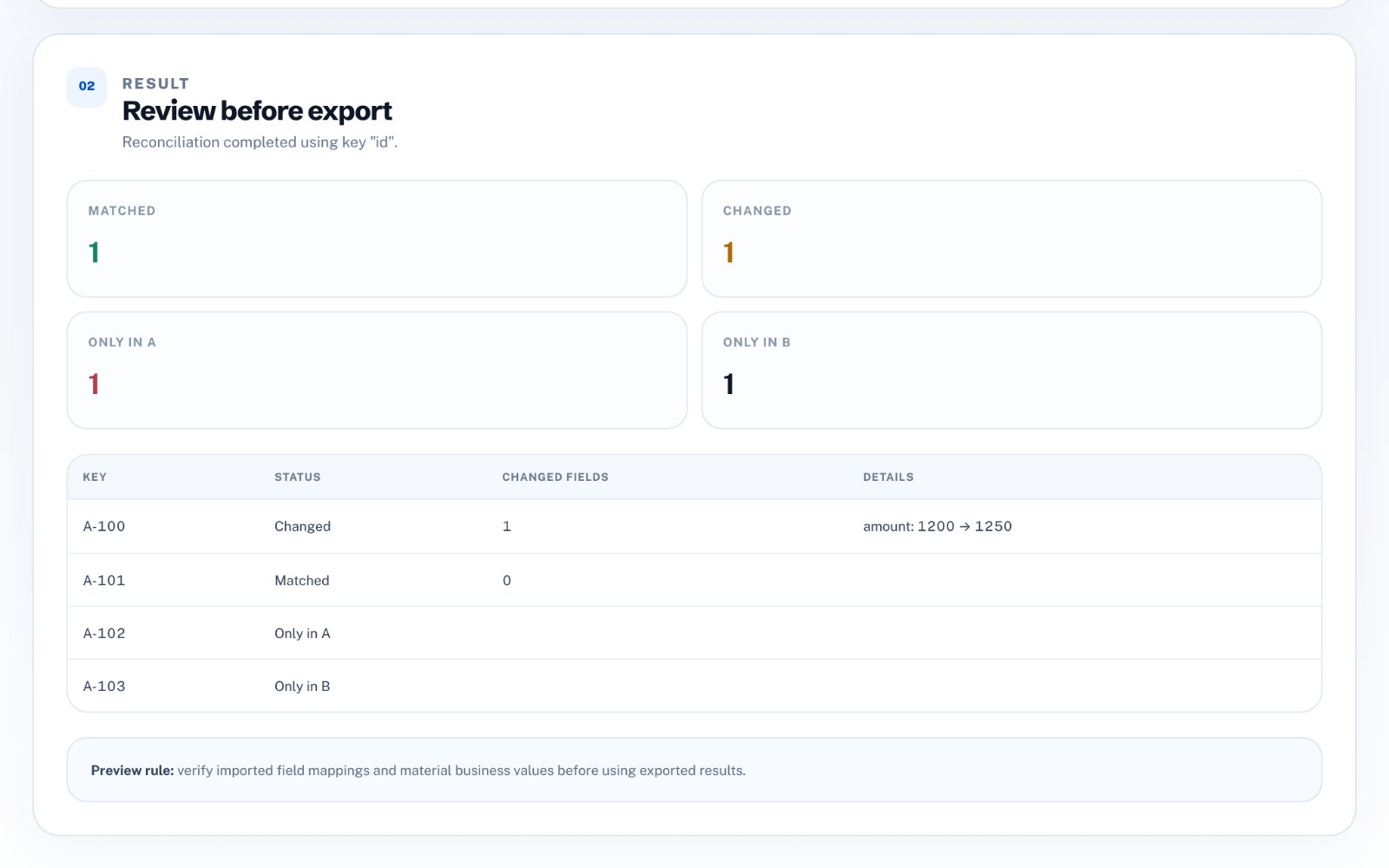
A good comparison sorts every row into one of four groups, so you can act on each group separately.
- Missing: in file A but not in file B
- Unmatched: in file B but not in file A
- Duplicated: the key appears more than once in a file
- Changed: the key matches, but another value differs, such as the amount or status
Doing it in Excel or Google Sheets
For a quick check, add a column in each file with a lookup (XLOOKUP, VLOOKUP or MATCH) against the other file's key. Rows that return an error are missing from the other side. A COUNTIF on the key column shows duplicates.
This works for a few hundred rows and one comparison. It gets slow and fragile with large files, several columns to compare, or a check you repeat every month.
Compare amounts with a tolerance
When the files come from different systems, amounts can differ by a cent because of rounding. Decide on a tolerance, such as one cent, so rounding does not flood your list of changes and the real differences stand out.
Do it in your browser
Data Reconciliation Studio compares two CSV or Excel files by the key you choose and lists missing, unmatched, duplicated and changed records, with the changed values side by side. Files are processed in your browser, so nothing is uploaded.
Your first 3 comparisons are free, then it costs $29 once.