Decide the output schema first
Choose which source columns you actually need and give them stable output names. A clear target schema prevents every export source from dictating the structure of the next workflow.
Decide which columns you need, what each should be called and what type it holds-text, number, date or email-before changing anything. The destination system's import template is usually the best guide.
Normalize values deliberately
Trim whitespace, standardize text case where appropriate, and convert dates and numbers only when you know the intended format. Avoid transformations that remove meaningful distinctions.
Normalize one column type at a time: trim spaces, lowercase emails, convert dates to one format and numbers to plain values. Be careful with values that look numeric but are not: phone numbers, postcodes and order IDs often have leading zeros that must be kept as text.
- Whitespace
- Text case
- Dates
- Numbers
Choose a safe duplicate key
Remove duplicates only when the selected key truly identifies repeated records. Names alone are often weak keys; an email, transaction ID or another stable identifier is usually safer.
Remove duplicates on a stable identifier such as email or customer ID, not on name. Two rows with the same name can be two different people, while the same email almost always means the same contact.
Preview before export
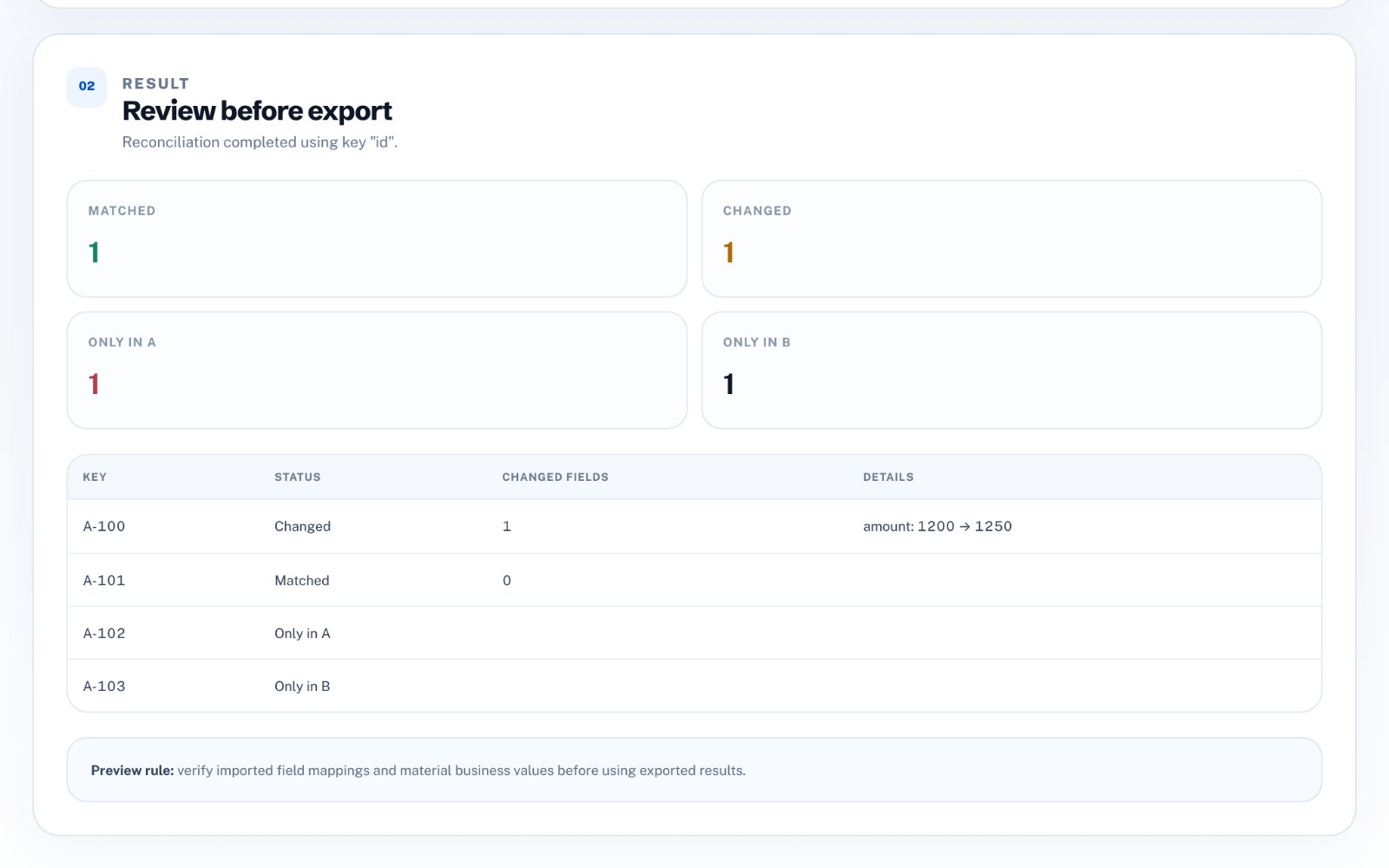
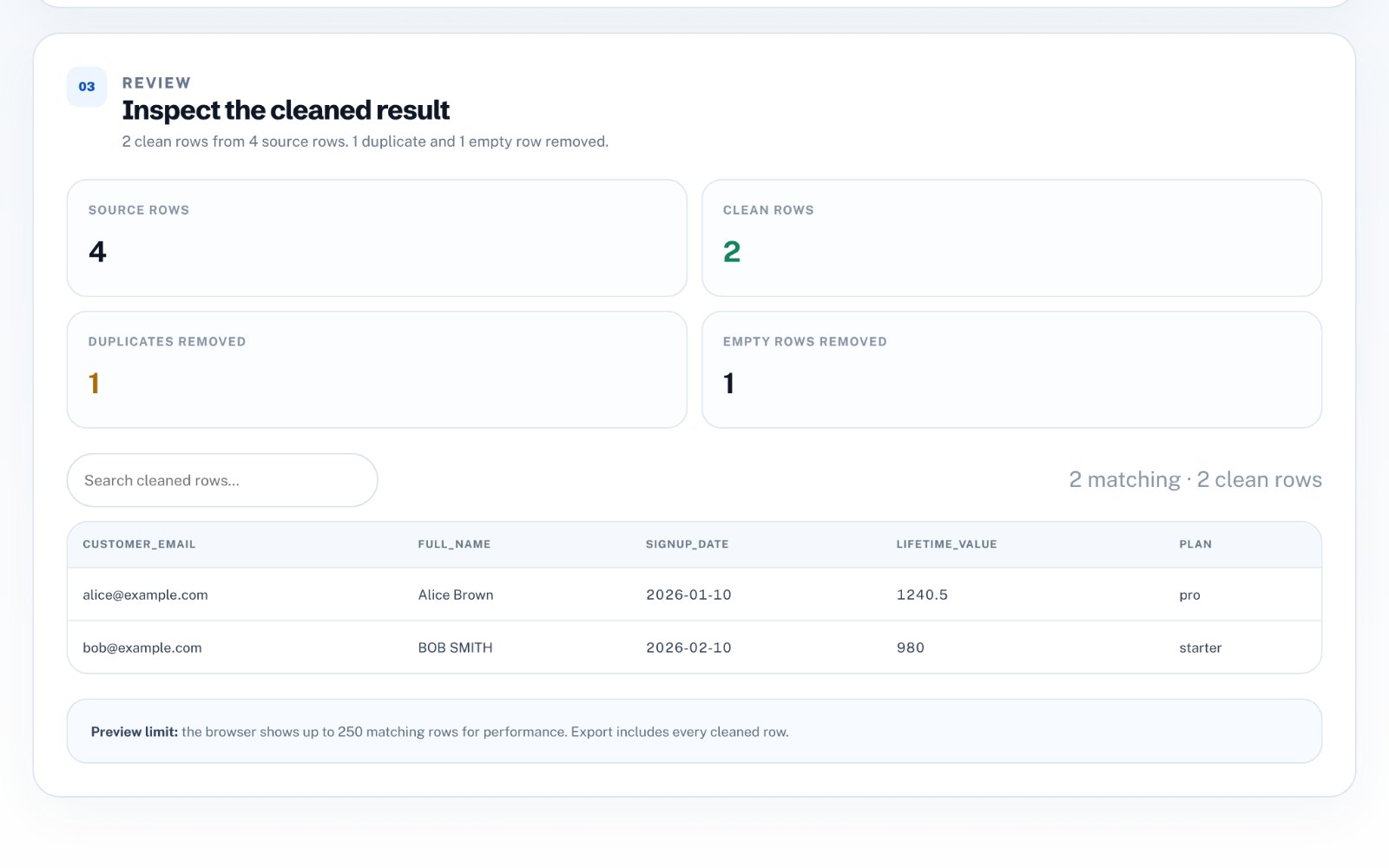
Review row counts, duplicates removed and empty rows removed before downloading the cleaned file. A good cleanup workflow should make its changes visible before they become permanent.
Preview the cleaned result and scan for blank cells that were not blank before. Any value that could not be converted should be kept and flagged rather than silently dropped.
Common CSV cleanup mistakes
The worst cleanup errors are the ones that look tidy. Spreadsheet software can change data as it opens a file, so check the raw values, not just the formatted view.
- Leading zeros lost from IDs and phone numbers
- Day and month swapped in dates
- Columns treated as dates because of their header name
- Duplicates removed on a non-unique column
- Encoding problems that corrupt accented characters
How to do this in CSV Cleaner & Mapper
zastech CSV Cleaner & Mapper loads CSV or XLSX in your browser, suggests a type for each column from both its name and its values, lets you rename, keep or drop columns, normalizes text, dates, numbers and emails, removes duplicates on the key you choose and exports clean CSV. Values that cannot be converted are kept and reported, never blanked.