Check the identity details first
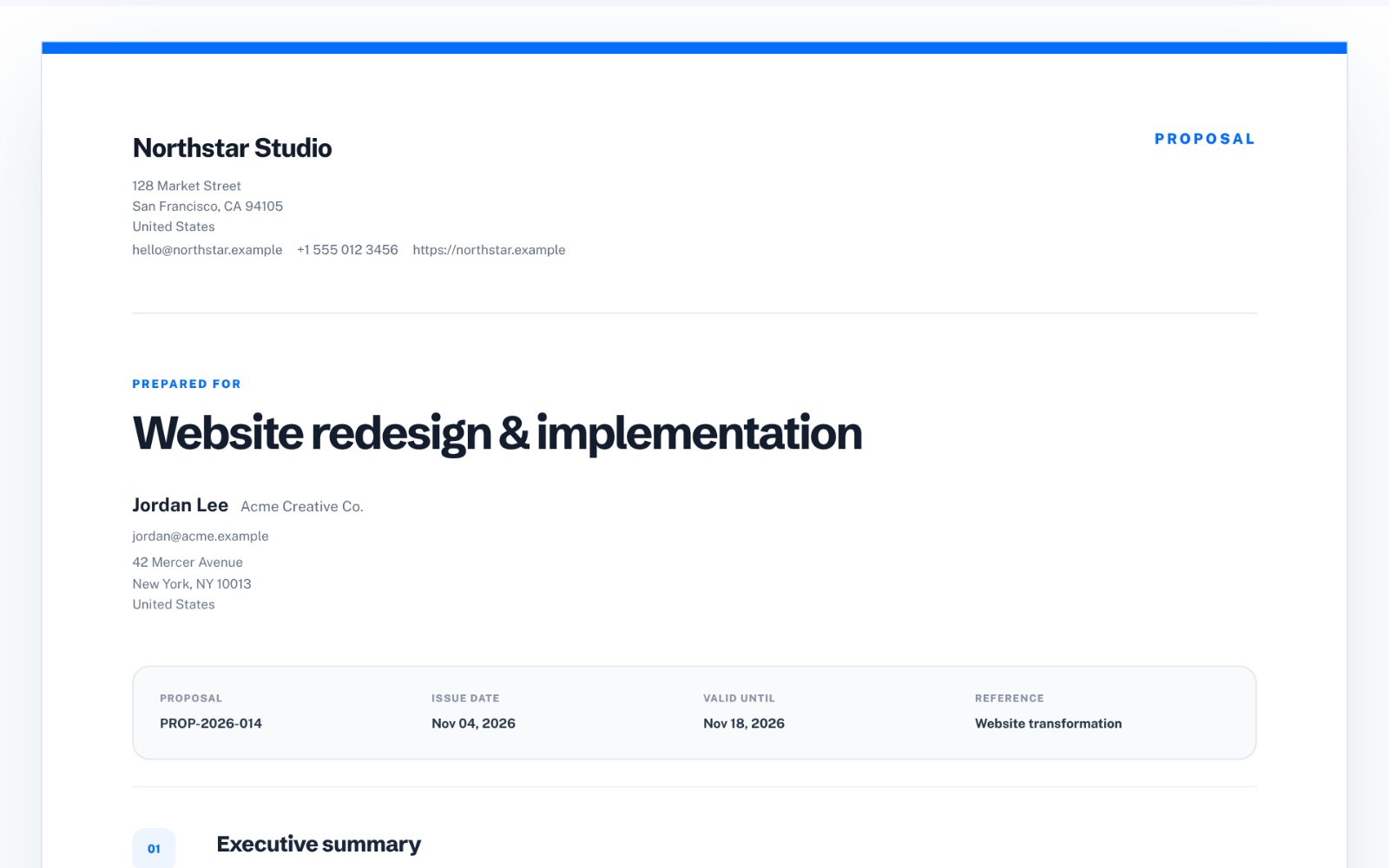
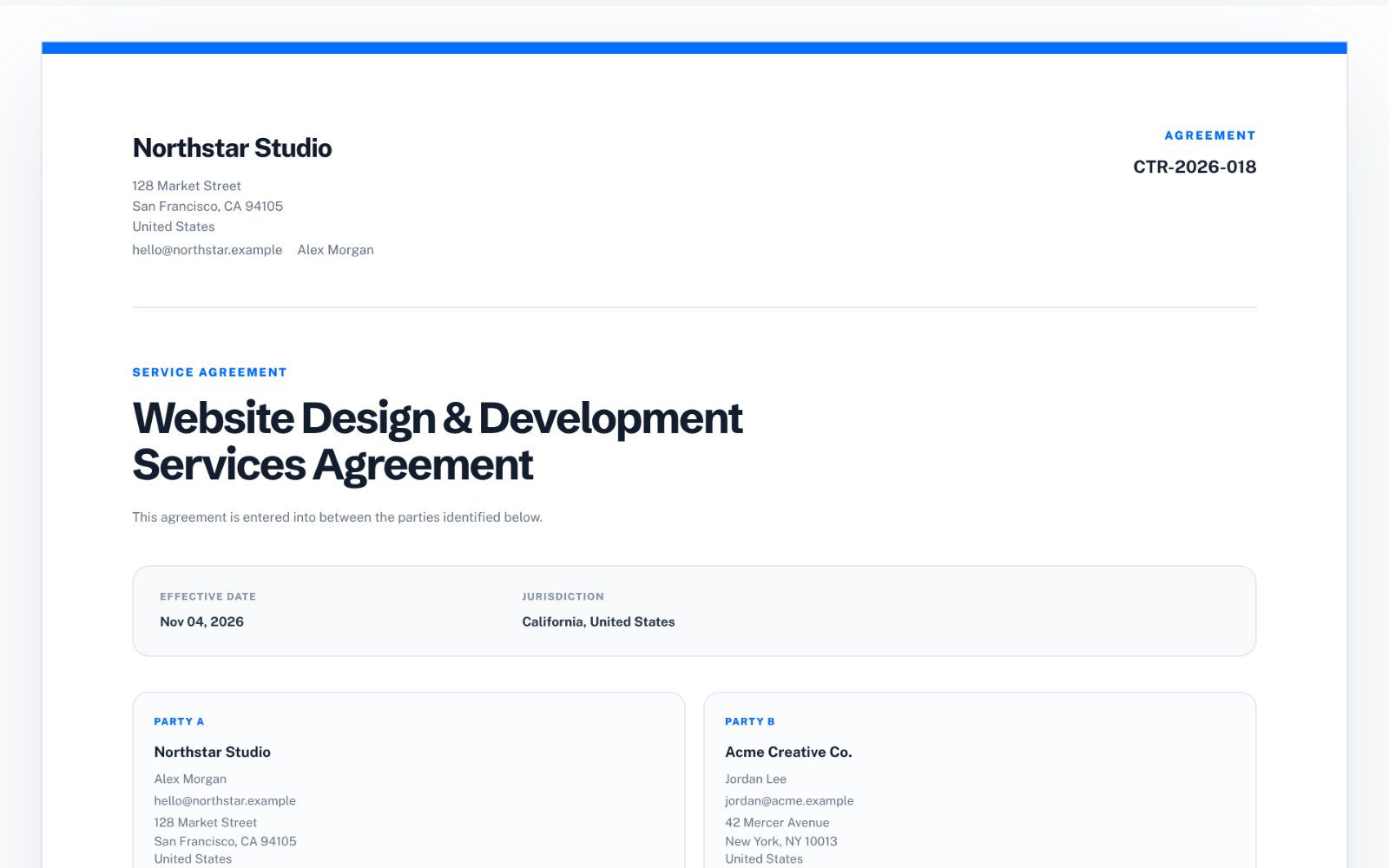
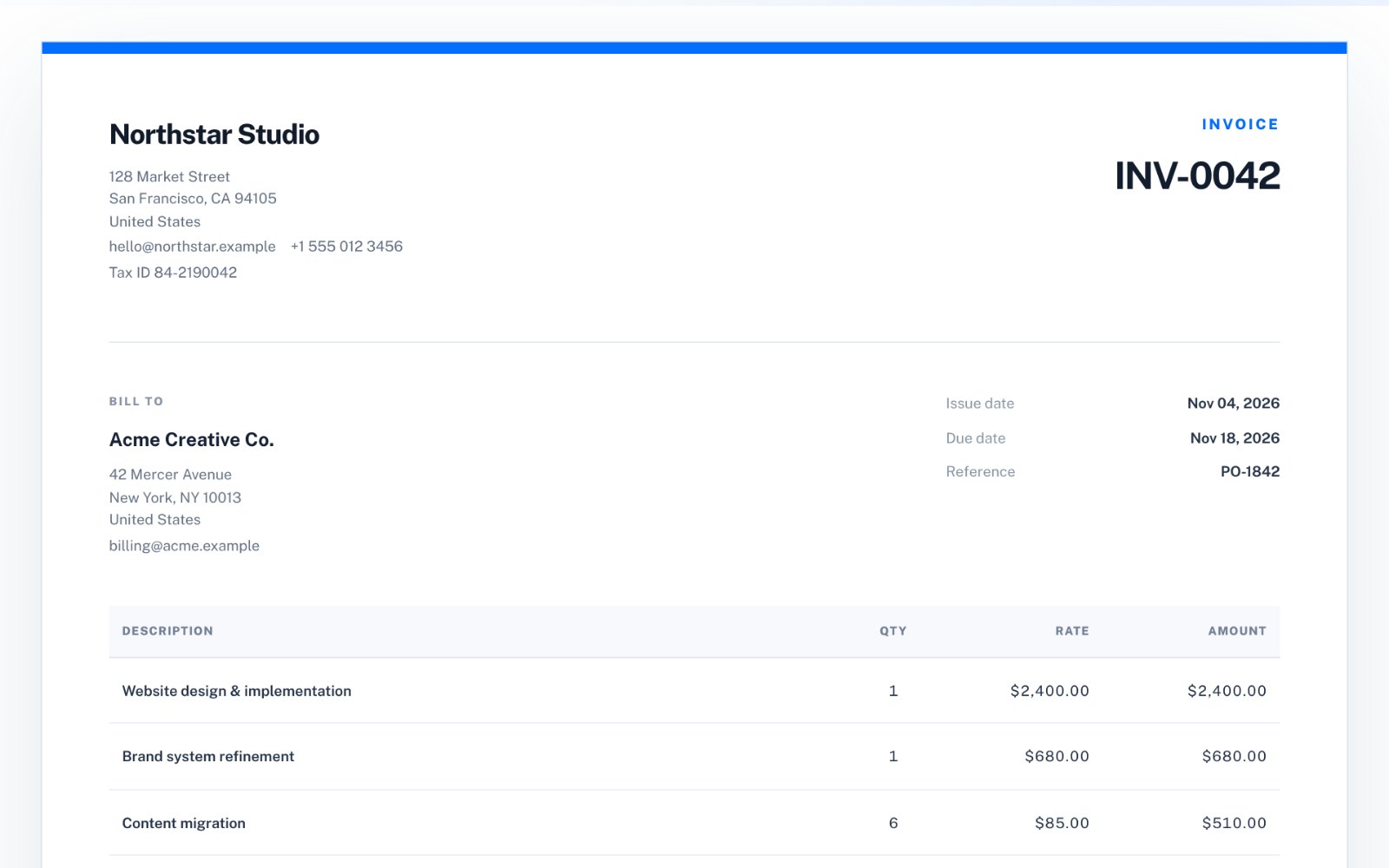
Confirm the business name, client name, invoice number and dates before reviewing the money. These fields are easy to overlook because they are not part of the total, but they are often what the client or accounting team uses to identify the document.
Use one numbering pattern and never reuse a number, even for a cancelled invoice. A predictable sequence such as INV-0042, INV-0043 makes it easy for both sides to match payments to documents months later, and many accounting and tax processes expect it.
The due date deserves the same care as the total. "Due on receipt" and "Net 14" mean different things to different clients, so state an actual date when you can.
- Business and client names
- Invoice number
- Issue date and due date
- Reference or purchase order number when needed
Make the line items understandable
A client should be able to see what each charge is for without decoding internal shorthand. Use short descriptions that match the agreed work and keep quantity and rate fields consistent.
If a line item covers several pieces of work, either split it or add a short qualifier such as the month or milestone. Clear lines reduce the most common reason invoices are queried: someone on the client side cannot match the charge to what they approved.
Keep units consistent. Mixing hours, days and fixed fees in one list is fine, but each line should make its own unit obvious.
Recalculate the final total
Review discounts, tax and the final total together. If the invoice was edited several times, the last check should be about the final exported numbers-not an earlier draft.
Tax deserves particular attention when you work across borders or change rates during the year. Check that the rate and label match what you are actually required to charge, and that the discount is applied in the order your client expects-before or after tax.
Finally, make sure the currency symbol and code are correct. A total that is right in USD but labelled in another currency is still wrong.
- Subtotal
- Discount
- Tax
- Final amount due
Export and inspect the PDF
Open the exported PDF once before sending it. Check logo placement, page breaks, long line-item descriptions and any notes at the bottom. The exported document is what the client sees, so it deserves the final review.
Save a copy of exactly what you sent with a filename that includes the invoice number. If the client asks a question later, you can answer from the same document they are looking at.
Common invoice mistakes that delay payment
Most late payments are not disputes. They are small administrative gaps that send the invoice back into someone's inbox. Checking for these before you send saves a full round of email.
- Missing purchase order or reference number the client asked for
- Payment details missing or unclear
- Totals that do not match the agreed quote
- Sending to a person instead of the accounts address
- No due date, or a due date already in the past
How to do this in Invoice Maker
zastech Invoice Maker keeps the business details, client details, line items, discount, tax and notes on one screen with a live A4 preview, so the final review happens on the document itself. It recalculates totals as you type, saves drafts locally in your browser and exports a PDF with no signup. Free invoices include a small zastech footer; a one-time license removes it.