Row names can differ slightly by country and change over time. This guide uses the column and row names in Etsy's US monthly statement as of November 2026.
Where to download it
In Shop Manager, open Finances, then Monthly statements. Choose the month, then download the CSV. Use the CSV rather than the PDF: it has every row, and spreadsheet tools can sort and add it up.
Download one full month at a time. A full month gives you an opening and closing balance to check against, which a custom date range does not.
- Shop Manager
- Finances
- Monthly statements
- Download CSV
The eight columns
Each row is one movement of money in your Etsy payment account. The columns describe it like this.
- Date: the day Etsy recorded the row, not always the order date
- Type: what kind of row it is, such as Sale, Transaction or Deposit
- Title: a short description, such as Payment for Order #3001
- Info: extra detail, often the order or listing number, sometimes empty
- Currency: the currency of your payment account
- Amount: money paid by the buyer, before Etsy's fees
- Fees & Taxes: what Etsy took from that row, shown as a negative
- Net: Amount plus Fees & Taxes, the real effect on your balance
Why some cells show two dashes
Two dashes mean the column does not apply to that row. A Transaction fee row has no buyer payment, so its Amount shows dashes and the fee sits in Fees & Taxes and Net.
Deposit rows show dashes in all three money columns. The amount sent to your bank is written in the Title instead, for example "$49.00 sent to your bank account". That is important: a deposit is money leaving your Etsy balance, not new income, so never add deposits to your sales.
The row types you will see most
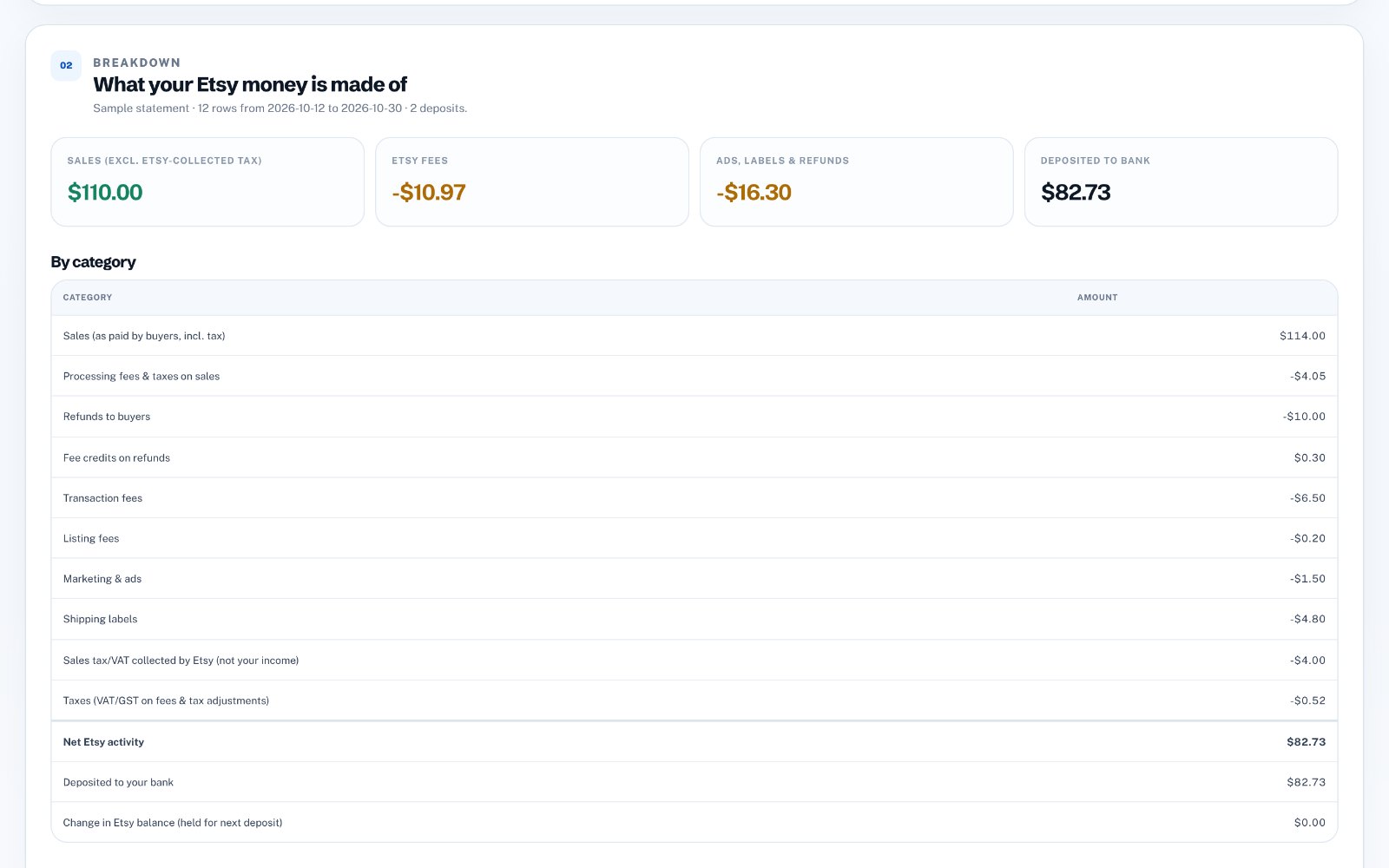
Most statements use a small set of types. Knowing which ones are income, which are costs and which are just pass-through makes the whole file easy to read.
- Sale: what the buyer paid, with the processing fee in Fees & Taxes
- Transaction: Etsy's 6.5% fee, usually one row per item
- Listing: the $0.20 listing or renewal fee
- Shipping Label: the cost of labels you bought through Etsy
- Marketing: Etsy Ads and Offsite Ads fees
- Refund: money returned to a buyer, with any fee credit Etsy gave back
- Tax and VAT: sales tax Etsy collected for the buyer, or tax on Etsy's own fees
- Deposit: money sent from your Etsy balance to your bank
Follow one order through the file
Search the Title column for one order number. You will usually find a Sale row with the buyer's payment and the processing fee, then a Transaction row for each item, and often a Listing row for the renewal on the same day. If you bought a label, a Shipping Label row follows.
Add the Net column of all those rows and you get what that order really earned you. Doing this for a few orders is the fastest way to understand your true margin.
The check that proves it adds up
Your statement shows an opening balance and a closing balance for the month. Add the Net column of every row except deposits. Then: opening balance, plus that total, minus the deposits, should equal the closing balance.
If it does not match, the usual causes are a deposit added as income, a missed row when copying, or a reserve that Etsy is holding back. Fix those and the numbers will agree.
- Opening balance
- plus the Net of every non-deposit row
- minus deposits to your bank
- equals the closing balance
Let a tool read it for you
Reading the file by hand is worth doing once. Every month after that, Etsy Payout Breakdown does the same work in seconds: it reads the CSV, groups each row into sales, fees, ads, labels, refunds and tax, matches sales to each deposit, and exports journal entries for Xero or QuickBooks.
Your first 3 breakdowns are free, the file is processed only for your result and not stored, and there is nothing to connect to your bank.