Identify the transaction columns
Confirm which columns represent date, description, debit, credit, signed amount, balance and reference. Do not start analysis until the mapping reflects the actual statement.
Most statements contain the same core fields under different names: date, description, reference, debit, credit and running balance. Some combine debit and credit into a single signed amount column. Identify which layout you have before converting anything.
- Date
- Description
- Debit and credit or signed amount
- Running balance when available
- Reference
Normalize dates and amounts
Choose the correct date order for ambiguous values and confirm whether debits are negative or represented in a separate column. Consistent normalization prevents false duplicates and incorrect totals.
Convert every date to one format such as YYYY-MM-DD and every amount to a plain number. Watch for thousands separators, currency symbols and negative values written in parentheses, such as (25.50), which usually mean a debit.
Review anomalies instead of every row
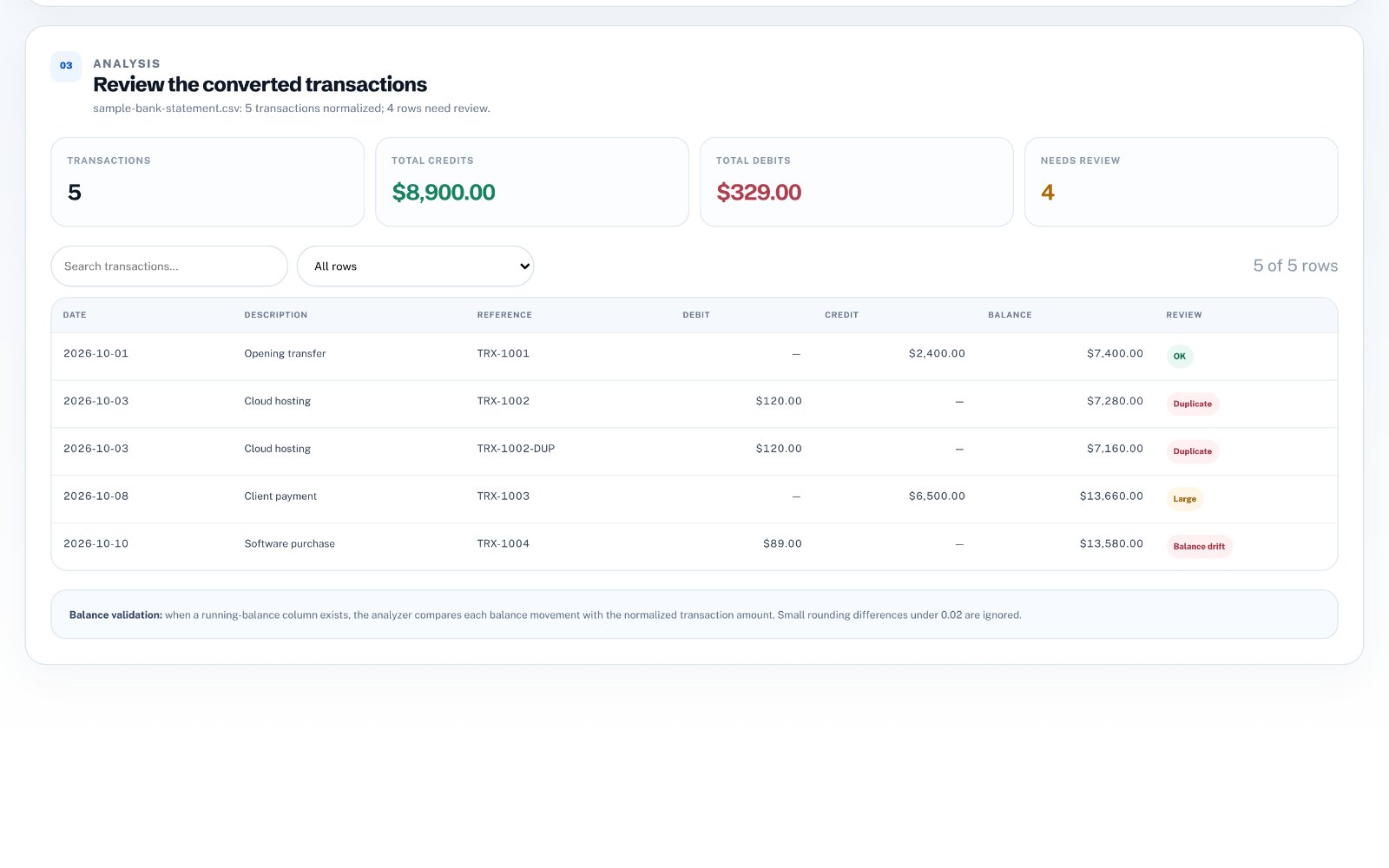
Once the data is normalized, focus review on duplicates, unusually large transactions and balance changes that do not match the transaction amount.
If the statement includes a running balance, use it as a built-in check: each row's balance should equal the previous balance plus credits minus debits. Rows that break the chain point to missing, duplicated or misread transactions.
- Possible duplicates
- Large transactions
- Balance drift
- Rows with missing dates or amounts
Export only after the review
Use the cleaned preview as a checkpoint. When the fields and flagged rows make sense, export the normalized CSV for the next accounting, reporting or analysis step.
Only export once the anomalies are explained. A clean CSV with consistent columns can then go straight into a spreadsheet or accounting system.
PDF statements: what works and what does not
Text-based PDF statements downloaded from online banking can usually be read directly. Scanned or photographed statements contain images rather than text and need OCR first, which is slower and less reliable-always review the totals afterwards.
How to do this in Bank Statement Converter
zastech Bank Statement Converter imports text-based PDF, CSV and XLSX statements in your browser, normalizes dates and amounts, validates the running balance, flags duplicates and large transactions, and exports clean CSV. Your statement never leaves your device.